
OccaviaDigital Invitations

How to Customize a Digital Wedding Invitation

To customize a digital wedding invitation, start with a design that already suits your venue and season, then make it yours in layers: a colour palette taken from your flowers or venue, one strong photo, fonts and wording in your own voice, the sections your guests really need, and the languages your families read. Because guests hold a link rather than a printed card, you can keep refining it after it has gone out. Below are practical design ideas for each layer, plus what to do when you want a change the editor can't make.

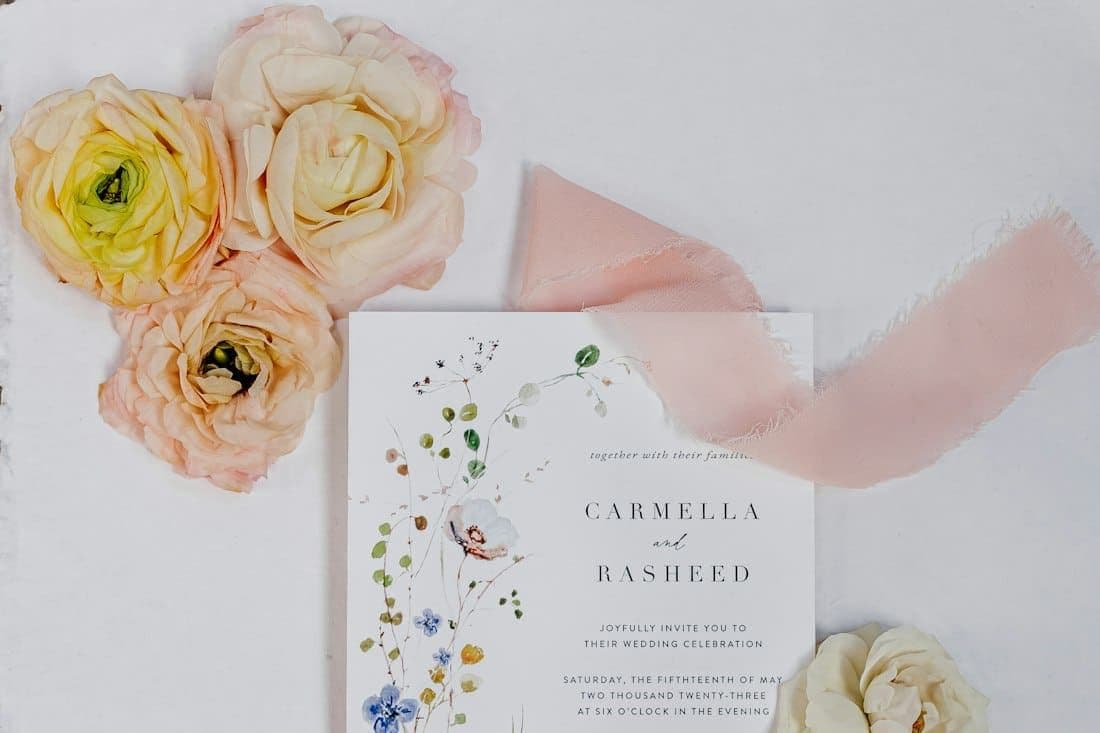
A watercolour wedding invitation with roses and silk ribbon
On this page
  1. Start with a template that fits your venue and season
  2. Wedding invitation design ideas: a palette from your flowers or venue
  3. A personalised wedding invitation with photo: choosing, cropping, resolution
  4. Fonts and wording that sound like the two of you
  5. Sections worth adding: schedule, map, dress code, travel, gifts, FAQ
  6. Languages for international families
  7. Music, motion and accessibility
  8. Can you change your wedding invitation after sending it?
  9. When to ask a designer for a change the editor can't make
  10. Frequently asked questions

Start with a template that fits your venue and season

Customizing is far easier when the design already does most of the work, so think about where you are getting married before you think about colours or fonts. A beach or clifftop wedding suits airy blues and plenty of white space. A vineyard or farmhouse suits warm, earthy tones. A palace, ballroom or grand hotel can carry deep colours, gold details and formal lettering, while a city hall ceremony followed by lunch looks best clean and modern.

Season matters too: spring blossoms feel slightly wrong in December, and heavy velvet tones feel heavy in July.

Judge each template with your own names and date in it, not the sample couple's, and open it on your phone, because that is where most guests will see it first. Browse animated digital wedding invitation designs for a starting point, and if you haven't built one yet, begin with how to make a digital wedding invitation.

Wedding invitation design ideas: a palette from your flowers or venue

A small, deliberate palette is what makes custom wedding invitations online look considered rather than busy. Three colours are usually enough: a dark one for text, a main colour, and an accent used sparingly for names, dividers or buttons.

Take them from something real:

  • Your bouquet or centrepieces: the deepest petal, the leaf green, the ribbon
  • The venue: terracotta roof tiles, pale limestone, a painted door, the sea at dusk
  • The bridesmaids' dresses or the suits

Combinations that suit the season: sage, blush and ivory in spring; sea blue, white and lemon for a summer on the coast; terracotta, olive and cream in autumn; navy or burgundy with soft gold in winter.

A practical trick: photograph a flower sample or the venue, open the picture on a computer and note the two or three colours you see most. If your editor accepts an exact hex colour code, you can match them precisely.

A personalised wedding invitation with photo: choosing, cropping, resolution

One strong photo beats five average ones. Look for natural light, both faces clearly visible, and some calm space around you, such as sky, a wall or a field, where your names and the date can sit without covering anyone.

Think about the crop before you upload. Most guests hold their phone upright, so a wide landscape shot usually loses its sides. Choose a picture where you are near the centre with room above your heads, and skip any where a face sits at the edge of the frame.

For resolution, use the original file from your camera or photographer. Screenshots and photos saved from a messaging app are compressed and look soft on a sharp phone screen. Avoid heavy filters too: they clash with your palette and date quickly.

On Occavia, a full wedding invitation has a place for a photo of the two of you, and the Photos section holds a few more favourite frames in JPG or PNG. Pictures from an engagement shoot are usually a safe choice.

Fonts and wording that sound like the two of you

Two fonts are plenty: an expressive one for your names and headings, and a plain, readable one for everything practical. Script looks lovely on names but turns times, addresses and dress codes into hard work, especially in capitals. On a screen, the details guests need to act on should be readable without zooming. A good editor lets you change the headline font, size and colour separately from the body text, and return to the template's defaults if you go too far.

Let the wording match the design. Three opening lines to adapt:

Formal: "[Name] and [Name] request the pleasure of your company at their marriage"

Warm: "We're getting married, and it wouldn't be the same without you"

Playful: "After [number] years and one very nervous proposal, [Name] and [Name] are finally tying the knot"

For complete invitations in every tone, see our wedding invitation wording templates.

Sections worth adding: schedule, map, dress code, travel, gifts, FAQ

A digital invitation isn't limited to what fits on a card, but not every section earns its place. Add the ones that answer the questions guests would otherwise message you about:

  • Schedule: ceremony, drinks, dinner, first dance, with real times
  • Venue and map: the full address, a map link, and a note if satnavs get it wrong
  • Dress code: a phrase guests can shop for, such as "garden formal, flat shoes recommended"
  • Travel and accommodation: nearest airport or station, shuttle times, nearby hotels
  • Gifts: one warm line, plus details only if you want to share them
  • FAQ: children, parking, plus-ones, the wet-weather plan
  • Your story: three or four sentences, not a biography

Four to seven sections is usually plenty. Order them the way guests will need them: when and where first, then the logistics. If you're unsure what belongs on the invitation itself, read what to include on a wedding invitation.

Languages for international families

If your families speak different languages, a translated invitation is one of the most thoughtful touches you can add. Grandparents read the details comfortably, and nobody has to act as interpreter in the family group chat.

  • Keep names, dates, times and addresses identical in every version; only the wording changes.
  • Translate meaning, not word for word. A formal opening line rarely maps neatly from one language to another.
  • Treat machine translation as a first draft, and ask a native speaker from each family to proofread their version.

An Occavia invitation can be written in up to 3 languages, chosen from 72, and guests switch between them with one tap. The editor can fill in a first translation automatically for you to check and adjust.

Music, motion and accessibility

A song can make an animated invitation feel special, but treat sound as a bonus. Guests often open links on a train or at work, and many phone browsers won't play audio until the viewer taps the screen. Keep any music short and gentle, and never put key information only in the soundtrack or the animation.

Accessibility is where many beautiful invitations quietly fail:

  • Contrast: pale grey on cream is hard to read. The WCAG web guideline recommends a contrast ratio of at least 4.5:1 for normal text, and free online checkers test it in seconds.
  • Size: your oldest guest should be able to read the details without zooming.
  • Text over photos: keep it on calm areas, never across faces.
  • Script fonts: for names, not for times or addresses.
  • Motion: gentle feels elegant; constant movement tires the eye.

Then do a real test: turn your screen brightness down, hold the phone at arm's length and ask an older relative to read the time and address aloud.

Can you change your wedding invitation after sending it?

Yes, and it's one of the biggest advantages of a digital invitation. On Occavia you can edit your invitation's details in your dashboard as often as you like after publishing, and the published link updates in place, so guests keep the link they already have.

Use that freedom with care:

  • A typo, a clearer dress code or a new FAQ answer can go live quietly.
  • A new date, time or venue also needs a direct message, because guests rarely reopen an invitation they think they've already read.
  • Tell your parents and the wedding party first.

A message you can copy: "Hi [Name], a quick update: the ceremony now starts at [new time] instead of [old time]. Everything else stays the same, and the invitation link has the latest details. See you on [date]!"

When to ask a designer for a change the editor can't make

Sometimes the detail that makes an invitation feel yours is out of an editor's reach: a different illustration or photo treatment, a colour the design doesn't offer, wording placed somewhere else, or more space around your names.

For those, a wedding invitation on Occavia includes 3 free design edits. From the Free design edits card in your dashboard, you pick what to change (a photo or illustration, a colour, wording, spacing or size, or something else) and describe it in words. The team makes the change by hand, usually within 1–2 business days, and emails you when it's done. It applies to your invitation only. Only completed changes count: if a request can't be done, it's declined with a reason and costs nothing. Edits start once the invitation is paid for and are available until the end of the event day. A brand-new design, a different template or rebuilding the page isn't a free edit.

Be precise, since your words are what the team works from: "In the Our story section, please change the heading to a deep olive green like the leaves in our bouquet, and add a little more space above the photo."

Before you send a request, check whether it's something you can change yourself in the editor.

Frequently asked questions

Can I change my wedding invitation after sending it?

Yes, if it's a digital invitation. You edit the details and the same link shows the updated version, so there is nothing to resend. Small fixes can simply be corrected. If the date, time or venue changes, also message guests directly, because not everyone will reopen an invitation they have already read. Start with close family, then everyone else.

What photo works best on a personalised wedding invitation?

A natural-light photo where both faces are clear and there is calm space around you for your names and the date. Pick one where you are near the centre, since phones crop the sides of wide photos. Upload the original file rather than a screenshot or a copy saved from a chat, which is usually compressed and looks blurry on a sharp screen.

Will an editable wedding invitation template look like everyone else's?

Only if you change nothing but the names. A palette taken from your own flowers or venue, your own photo, fonts and wording in your voice, and sections written for your guests make the same template look and read very differently. For anything the editor can't reach, such as a different illustration, a design edit request is the next step.

How many fonts and colours should a wedding invitation use?

Two fonts and three colours is a safe maximum. Use one expressive font for names and headings and one plain, readable font for times, addresses and details. For colour, pick a dark text colour, one main colour and a small accent. More than that tends to look busy on a phone screen and hides the practical information.

What if a wedding invitation editor online can't make the change I want?

Ask a designer instead of forcing a workaround. A wedding invitation on Occavia includes 3 free design edits: you describe the change from the Free design edits card in your dashboard, the team makes it by hand, usually within 1–2 business days, and emails you when it's done. If a request can't be done, it's declined with a reason and doesn't count.

Should our digital invitation match the rest of our wedding stationery?

It helps, though it doesn't need to be identical. Use the same palette and fonts on the seating plan, menus and welcome sign, and give your printer the exact colour codes and font names. That way, guests who opened the invitation on their phone recognise your wedding the moment they walk into the venue.

Create your invitation