
OccaviaDigital Invitations

The Digital Disposable Camera for Weddings: A Couple's Guide

A disposable camera wedding app gives you what the little cardboard cameras on each table always promised: candid shots from every guest and the thrill of seeing them all together later. Instead of film, guests scan a QR code and upload from their own phones, and you decide when the photos "develop". This guide compares real disposable cameras with the digital version, then walks through the host controls that make it work: a reveal time, approving photos before they appear, pausing uploads and keeping the album private. You'll also find sign wording to copy and a checklist for the day.

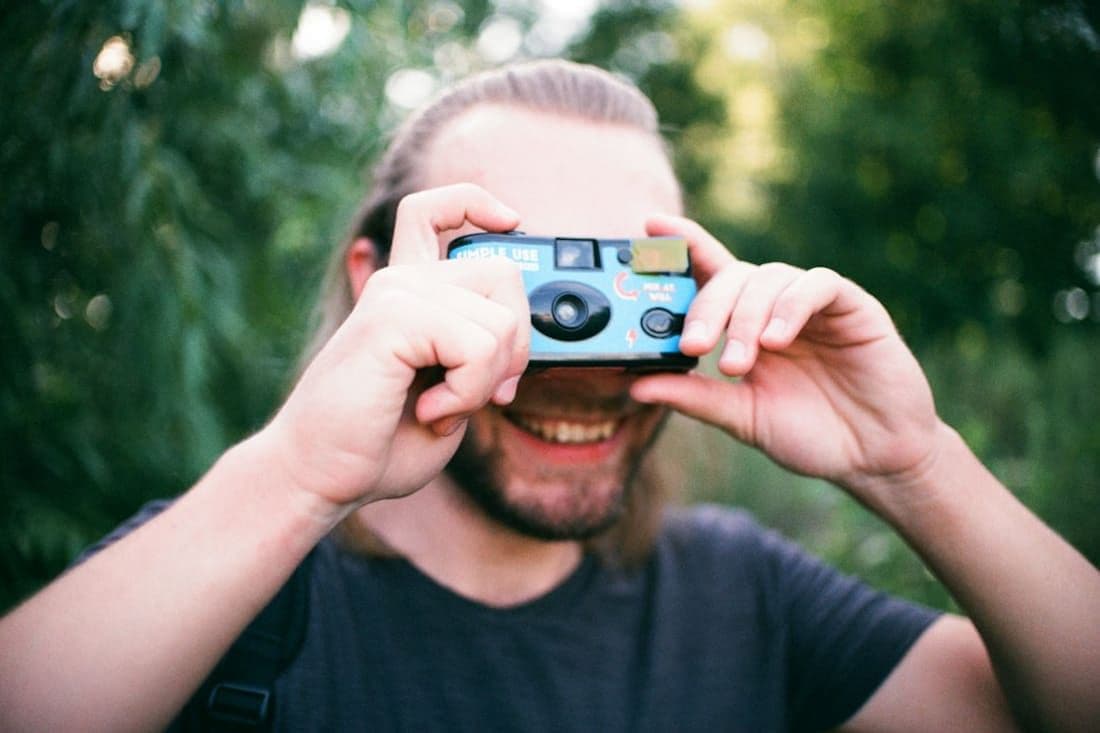
A smiling guest taking a photo with a disposable camera
On this page
  1. Disposable Cameras at Weddings: The Pros and Cons of Real Film
  2. How a Digital Disposable Camera for Weddings Works
  3. The Photo Reveal: Bringing Back the Wait for Developing
  4. Wedding Photo Reveal Ideas: The Morning After and Beyond
  5. How to Approve Guest Photos Before They Appear
  6. Pausing Uploads After the Party, or When Something Goes Wrong
  7. How to Keep Wedding Photos Private
  8. Wedding Guest Disposable Camera Sign Wording
  9. Digital Disposable Camera Checklist for the Day
  10. Frequently asked questions

Disposable Cameras at Weddings: The Pros and Cons of Real Film

Disposable cameras on the tables are a lovely idea, and the charm is real. Guests put their phones down for a while, nobody can check how the shot turned out, and those grainy, flash-lit photos look like a party. Kids adore them, and waiting for the prints adds a little suspense.

The downsides show up after the wedding:

  • You pay twice: once for the cameras, then again for developing and scanning every roll.
  • Cameras go missing. Some leave in a handbag, others stay under a table and get cleared away with the linens.
  • Plenty come back half-used, while others are finished in ten minutes by the same enthusiastic cousin.
  • Dark reception rooms and forgotten flashes produce a lot of black frames.
  • You can't see anything until the prints come back from the lab, and that can take weeks.
  • Sharing the photos with the people who took them means scanning and sending them yourselves.

None of this means film is a bad idea. If you love the look, a few cameras for the ceremony or the photo corner can sit happily alongside a digital version that catches the rest of the night.

How a Digital Disposable Camera for Weddings Works

The digital version swaps the roll of film for the phone every guest already carries. You put a QR code on the tables or share a photo link, and guests open it in their phone's browser and upload straight from their camera or gallery. There's no app to install and no account to create, which matters at a wedding where grandparents and teenagers share a table.

With Occavia's wedding photo sharing, the photo link lives on your digital invitation. Guests can pick several photos at once, and big files and videos are fine, so the slow-motion clip of the bouquet toss makes it in too.

What turns a shared album into a disposable camera is control over what people see and when. Three settings do most of the work:

  • Reveal later keeps the photo wall hidden until a date and time you choose, like film at the lab.
  • Review holds every new upload until you approve it.
  • Uploads lets you pause new photos and switch them back on later.

The next sections cover when each one is worth using.

The Photo Reveal: Bringing Back the Wait for Developing

Half the fun of film is not knowing what came out. You can recreate that feeling with a reveal time. You pick a date and time; guests keep uploading all evening, but nobody sees the photo wall until that moment. Anyone who opens the album early sees a "Still developing" message telling them when everyone's photos will appear together, and the wall opens by itself at the set time.

Two details make this easy to live with. First, you aren't left in the dark: you can see everything in your dashboard beforehand, so you can take a peek or deliberately save the surprise for yourselves too. Second, you can change your mind. Turning the reveal off shows the photos right away, which is handy if everyone at the morning-after brunch starts begging to see them.

One decision to make early: the big-screen live view follows the same rules, so it shows nothing before the reveal. If you want guest photos rolling on a screen during the reception, a reveal set for the next morning will keep that screen empty. Choose one experience for the night, a live wall or a surprise later. Our guide to the wedding reception slideshow covers the live option in detail.

Wedding Photo Reveal Ideas: The Morning After and Beyond

The best reveal time is one when most guests are awake, rested and in the mood to open a link. A few ideas that work:

  • The morning-after brunch. Set the reveal for 11:00 the next day, while everyone is refueling and nursing sore feet. Put the album on a TV or tablet and scroll through it together.
  • Back from the honeymoon. Pick an evening in your first week home, when you can finally sit on the sofa and look through everything slowly. Guests get a lovely reminder of the day just as the post-wedding blues set in.
  • A set evening for everyone. Try the Friday a week later at 8:00 p.m. and tell guests in advance, so friends in different cities open the album at the same time and message each other about the best shots.
  • Family abroad. Check time zones before you choose, because a comfortable morning for you may be the middle of the night for relatives overseas.

Don't push the reveal too far out. Guest photos and videos are kept for six months after the event date, so a reveal on your first anniversary would come too late. Think in days or weeks, not months.

Copy-paste message for reveal day:

The photos are developed! From 11:00 today you can see every photo taken at our wedding. Just open the photo link on our invitation. Thank you for capturing the day with us! [Name] and [Name]

How to Approve Guest Photos Before They Appear

Moderation sounds formal, but in many families it's simply good manners. Switch on Review and new uploads wait for your approval before they appear on the wall or the big screen. You go through them one by one and approve or reject each photo. A rejected photo is deleted and that can't be undone, so reject only what you're sure about. Guests see a note that the couple checks photos before they appear, which quietly encourages everyone to think twice before sharing.

Review stays off until you switch it on, and it's worth using when:

  • Children are at the wedding and some parents would rather their kids' faces weren't on a shared wall.
  • A big screen is running in front of grandparents, colleagues or your church community.
  • The bar stays open late and the dance floor gets a little wild.
  • A guest has asked not to be photographed, for personal or professional reasons.
  • Your album is public, so everyone with the invitation can see the wall.

The honest trade-off is time. Approving happens one photo at a time, with no approve-all option, so a big wedding with a snap-happy crowd can mean a long sitting. Make it a ritual: sit down together the next day with coffee, or switch Review on only for the late part of the party.

Pausing Uploads After the Party, or When Something Goes Wrong

A real disposable camera stops when the film runs out. The digital one stops when you say so. The Uploads switch pauses new photos whenever you like, and you can turn uploads back on later. Guests who try to add something see a friendly message that uploads are paused, and everything already shared stays in the album.

Good moments to pause:

  • A few days after the wedding, once the stragglers have sent their best shots from the dance floor. Plenty of people only scroll through their camera roll the next morning, so don't close too soon.
  • Just before the reveal, so the album that opens is the complete, finished set.
  • Straight away, if something unwanted starts appearing. Pause first, then switch Review on before you reopen uploads, so nothing else reaches the wall without your approval.

Pausing is manual; nothing closes by itself at a set time. Put a reminder in your phone for the day you plan to close the album.

How to Keep Wedding Photos Private

An Occavia photo album is private by default: each guest sees their own uploads, and you see everyone's in the dashboard. That's the right choice if you mainly want the photos for yourselves, or if your guest list mixes circles that don't need to see each other's party pictures. If you'd like the shared-wall experience, you can switch the album to public so everyone with the invitation can see it. Pairing that with Review keeps you in charge of what appears.

A few habits protect privacy whichever option you pick:

  • Share the photo link only with invited guests, and keep QR signs inside the venue rather than at a public entrance.
  • Politely ask guests not to post photos of children or the ceremony on social media before you do.
  • Tell guests where their photos go, so nobody is surprised.
  • Download everything. Download all gives you one ZIP of the approved original files. Guest photos and videos are kept for six months after the event date, and you get an email reminder thirty days before that. Don't wait for it: save the ZIP to your computer and a second backup soon after the reveal.

Wedding Guest Disposable Camera Sign Wording

Guests need to know three things: that the camera exists, how to use it and when they'll see the results. Keep signs short and put them where people stand around, like the bar, the tables and the photo corner. For size and placement tips, see our guide to the wedding QR code sign.

Classic table sign: Be our photographer! Scan the code, snap away and upload your photos and videos. No app needed. The photos are developing and will be revealed on [Day] at [Time].

Playful table sign: Our digital disposable camera 1. Scan me 2. Shoot all night 3. Upload your favorites Nothing shows until [Day], just like real film.

When Review is on: Share your best shots of [Name] and [Name]! Scan to upload from your phone. We check photos before they appear on the wall, so please keep them family-friendly.

For the MC or best man: "Quick one before the dancing starts: there's a QR code on every table. Scan it, upload your photos from tonight, and the whole collection will be revealed at brunch tomorrow at 11. No app, no sign-up."

Digital Disposable Camera Checklist for the Day

Before the wedding:

  • Decide on the reveal: a date and time, or a live wall on the big screen during the party.
  • Decide whether Review is on, and whether the album stays private or goes public.
  • Print the QR signs and add the photo link to the message you send guests.
  • Test it: ask a friend to upload a photo and a short video from their phone.
  • Check the phone signal or guest Wi-Fi at the venue, and add the network name to the sign if reception is weak.

On the day:

  • Place signs on the tables, at the bar and anywhere people queue.
  • Ask the MC to announce the camera once, early in the evening.
  • If you're also setting up an audio guest book, announce both together so guests hear it all once.

After the wedding:

  • Leave uploads open for a few days, then pause them.
  • Approve photos if Review is on.
  • Let the reveal happen and send guests the reveal message.
  • Download everything as a ZIP and keep two copies.

If you're still choosing the invitation that will hold the photo link, start with a digital wedding invitation that also collects RSVPs and wishes.

Frequently asked questions

Are disposable cameras at weddings worth it?

They can be, if you love the film look and accept what comes with it: buying the cameras, paying for developing and scanning, and losing a few cameras or half-used rolls along the way. Many couples now put a QR code on the tables so guests use their own phones, and keep one or two film cameras as a fun extra. That way you skip the lab wait and still get a proper reveal.

Is there a wedding guest photo app with no app download?

Yes. With Occavia, guests scan the photo QR code or open the photo link and upload photos and videos straight from their phone's browser, with no app to install and no account to create. They can pick several files at once, and videos and large files are fine. That keeps it easy for every guest, from teenage cousins to grandparents who rarely install anything.

How do I approve guest photos before they appear?

Switch on Review before the wedding. New uploads then wait for your approval before they show on the photo wall or the big screen. You approve or reject each photo one by one, and a rejected photo is deleted and can't be recovered, so only reject what you're sure about. Guests see a note that you check photos first. It's especially useful when children are there or photos run on a screen.

Can wedding guests see each other's photos?

Only if you want them to. The album is private by default: each guest sees their own uploads, while you see everyone's in your dashboard. You can switch the album to public so everyone with the invitation can see the wall. If you do, consider turning on Review too, so you decide what appears, and set a reveal time if you want the shared wall to stay a surprise.

When is the best time for a wedding photo reveal?

Pick a time when guests are awake and likely to open a link. The morning-after brunch is a favorite, and so is a set evening a week or two later, or your first week back from the honeymoon. Keep it within weeks rather than months, because guest photos are kept for six months after the event date and you'll want plenty of time to download them.

How long are guest photos from our wedding kept?

Guest photos and videos are kept for six months after the event date. Thirty days before that, you get an email reminding you to download everything. Use Download all to get one ZIP of the approved original files, then save a copy on your computer and a second backup somewhere else. Don't rely on the reminder alone; downloading soon after the reveal is the safest habit.

Create your invitation