If your invitations are on Occavia, your event dashboard has a Seating plan page. You create tables by name, such as "Table 1" or "Family", each with a seat count (8 by default), and you can rename, resize, reorder or delete them; deleting a table keeps its guests, who simply become unseated. Your guest list can be imported from Excel, Google Sheets, Numbers or a CSV file, or pasted in. Then give each party a table from a dropdown, or select several and assign them in one go. Filters show who's still unseated and who's at each table, with counts like 6/8, and any table over capacity is highlighted.
Seat counts follow your online RSVPs: a party counts its invited size until it replies, its confirmed size once it says yes, and frees its seats when it declines, with each party's status shown beside it. It's a table list rather than a drawn floor plan, so agree the room layout with your venue.
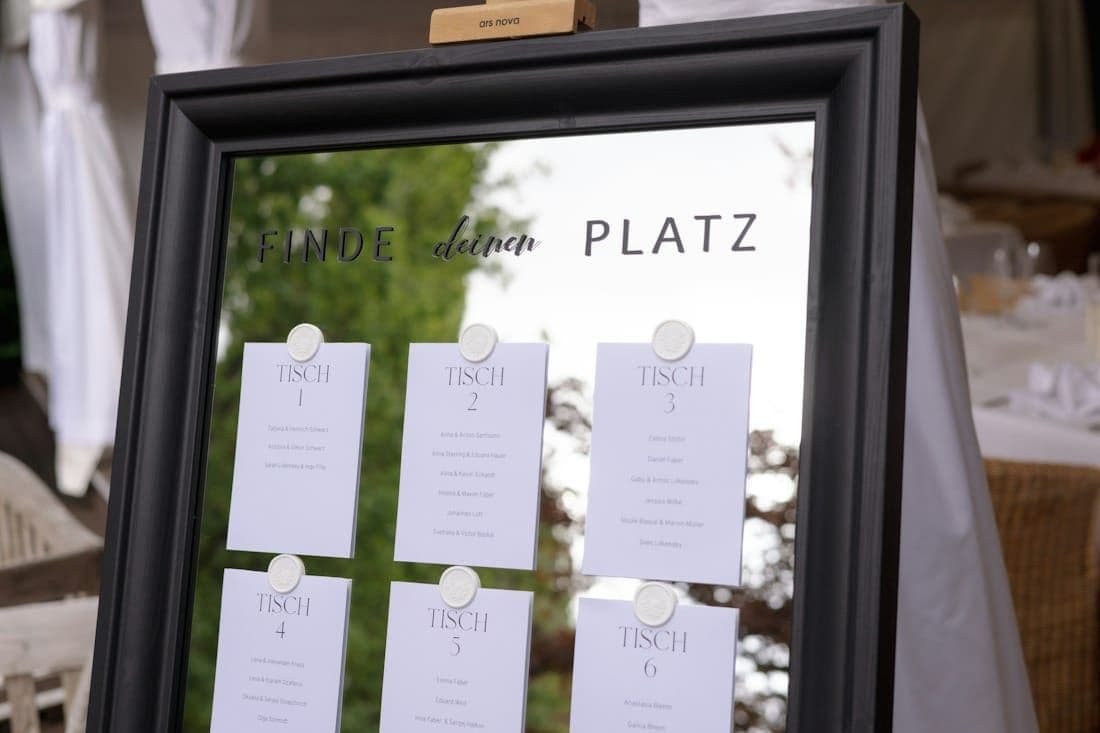
Then there's Find your seat, which stays off until you switch it on. Guests type their name (at least three letters) and see their table name, with no app or account needed. Share the lookup link or put it on a screen, download the QR code, or print a ready-made A4 poster from your browser in one of three designs: Navy & gold, Wine classic or Cream elegant. Guests who have replied yes on their phone can also find their table on the digital wedding invitation itself.
Two tips: enter names the way guests will type them, because the search doesn't correct typos, and tell plus-ones to search under the main guest's name. A partner, parent or planner you invite as a co-host can help with tables and assignments too.