Wedding guest list manager with live RSVP tracking
A wedding guest list manager is where you keep everyone you invited and see who has replied. Occavia builds it into your invitation's dashboard: add or import your list, and every RSVP sent through the invitation is matched to a name on it, with a live headcount of who is attending, who declined and who is pending.
Type guests one at a time, paste rows from a spreadsheet, or upload a file from Excel, Google Sheets or Apple Numbers. Then filter by status, open any guest to read their details, remind those who have not replied, export the replies and seat everyone. Up to five co-hosts can share the list.
Create your invitation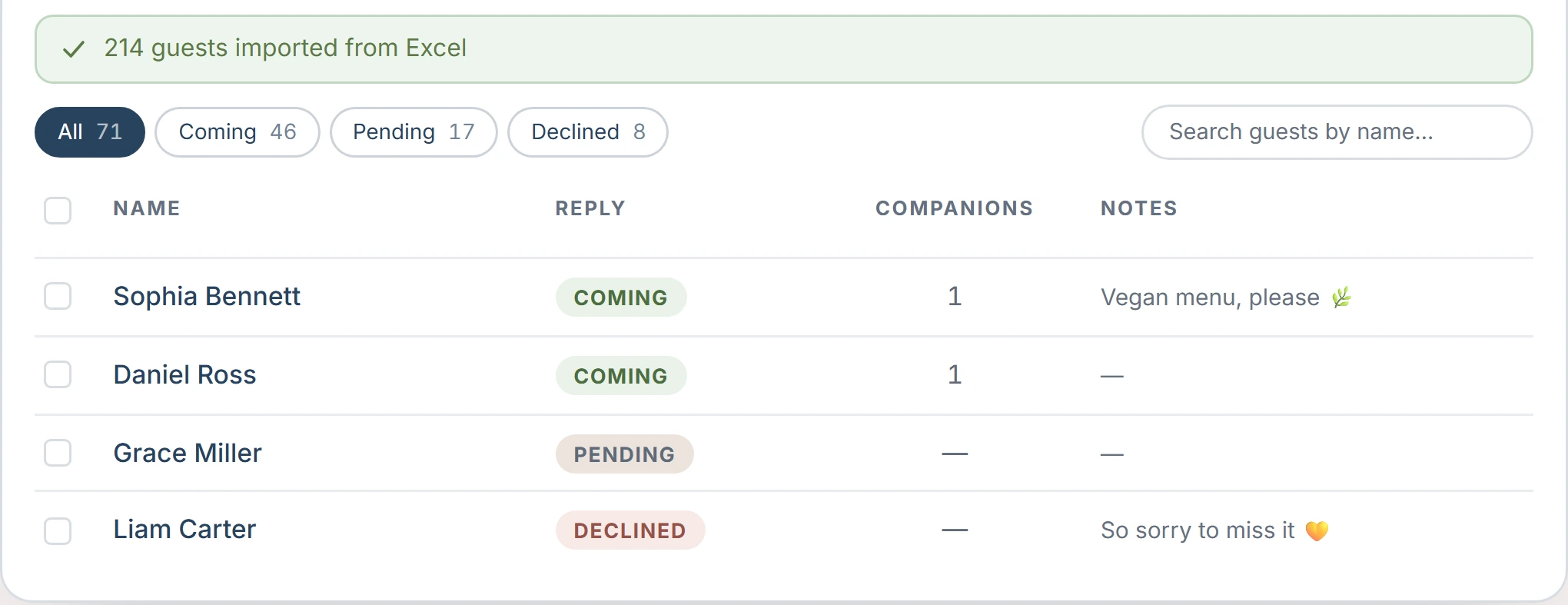
What is a wedding guest list manager?
A guest list starts as names in a spreadsheet. The work begins once the invitations go out: every reply has to be copied next to the right name, plus-ones counted, allergies noted, and the total worked out again each time someone changes their mind. A guest list manager keeps the list and the replies in one place, so each guest's status is always current.
Occavia does this inside the invitation. Guests reply through the online RSVP form on your invitation link, and each reply is attached to the matching name on your list: the guest moves from Pending to Attending or Declined, and their party size goes into the headcount. Still deciding who to invite? Start with how to make a wedding guest list.
How it works
Add or import your list
In your invitation's dashboard, type guests one at a time, upload an Excel, Numbers, OpenDocument or CSV file, or paste cells copied from Google Sheets. Imported rows appear for review before anything is saved. One import takes up to 1,000 guests.
Share your invitation link
Every invitation has one link, the same for all guests. Send it on WhatsApp, by email, or as a QR code made with the free QR code generator. There is nothing to prepare for each guest.
Replies attach to names
Occavia matches the name a guest typed with your list, ignoring capitals, accents and name order. Their row changes to Attending or Declined, with the number of people coming. Someone who is not on your list is still counted and tagged "not on list".
Remind, export and seat
Listed guests with an email address who have not replied get a reminder email 7 days and 1 day before the wedding. Guests with a phone number can get a WhatsApp reminder from your own phone. Then export the replies as CSV and open the seating plan, which works from the same list.
What guests see
By default, guests see nothing of your list. They open the invitation in their browser, type their name and reply. They get no personal link, code or account, and they cannot see who else was invited.
That changes only if you switch on "Show who's coming" in the RSVP options of the builder. The invitation then shows the names of guests who said yes, and the reply form suggests names from your list once a guest has typed three letters, so replies match cleanly.
A listed guest with an email address who has not replied gets a short reminder email, written in English, with a button back to the invitation. A WhatsApp reminder comes from your own number.
What you see
The dashboard opens on six number cards: Invited, Replies with the response rate, Pending, Attending, Declined, and Guests coming. The first five count parties: a couple or a family on one row is one. The last counts people, because a family that replies for four is one reply and four chairs. While the dashboard is open, it checks for new replies about twice a minute and shows a banner for each one.
Below is the list, sorted A to Z, with a status chip, the party size and the table of each seated guest. Filter by Attending, Pending or Declined, or search by name. Open a guest to read their note, dietary needs, companions and answers to your questions. If your form asks for a main course, a Meals card totals each dish for the caterer. Edit a guest's details, or tick several guests and delete them together.
Key capabilities
Import from Excel, Sheets, Numbers or CSV
Upload .xlsx, .xls, .numbers, .ods or .csv, or paste rows copied from a spreadsheet. Up to 1,000 guests per import, reviewed before saving.
Automatic name matching
A reply from "anna MÜLLER" or "Müller, Anna" lands on Anna Müller. If a guest replies twice, the latest answer counts.
A headcount in people
Guests coming adds up the party sizes of everyone who said yes: the number your caterer and venue ask for, moving with every reply.
Reminders for guests who have not replied
Email reminders go out on their own 7 days and 1 day before the event. The WhatsApp reminder opens a ready message with the guest's name and your link; you press send.
Up to five co-hosts
Invite your partner, a parent or your planner by email. A co-host can add, edit and seat guests; payments, publishing and deleting stay with you.
CSV export for your caterer
One button downloads every reply with party size, companions, dietary needs, note and a column per question you asked.
Importing a list you already have
Occavia reads Excel (.xlsx, .xls), Apple Numbers, OpenDocument and plain CSV or text files, and only the first sheet of a workbook. From Google Sheets, copy the cells and paste them into the import box, or download the sheet as Excel or CSV.
A header row with English column names (Name, Email, Phone, Party size, or First name and Last name) lets the columns sit in any order. Without one they are read as name, email, phone, party size. Only the name is required.
A longer list can be split across several imports of up to 1,000 guests each. An import adds rows and does not merge with names already there, so import each file once.
How replies are matched to names
Matching is by name and runs each time the dashboard loads, so it also covers replies that arrived before you added your list. Both names are reduced to the same form: lower case, accents and punctuation removed, words sorted. "José Pérez" and "perez, jose" are one person.
The match is on whole words, not guesses. "Kate Brown" will not attach to "Katherine Brown": her reply appears at the end of the list, tagged "not on list". Edit the name on your list to the spelling she used and the reply attaches itself. You cannot rewrite a guest's answer.
Privacy, and what happens after the wedding
Your list is visible to you and to the co-hosts you invite, and to nobody else. A co-host must sign in with the email address you invited, so a forwarded invitation opens nothing.
Guests never see the list unless you turn on "Show who's coming", and even then they see names only. Email addresses, phone numbers, notes and declines stay in your dashboard. The invitation page is kept out of search engines.
The guest link closes three days after the wedding date. Your list and every reply remain in your account, next to the wishes left in the digital guestbook, and the replies can still be exported.
Frequently asked questions
How do I import a wedding guest list from Excel or Google Sheets?
Open the import panel under the guest list in your dashboard and upload the .xlsx or .xls file, or copy the cells in Google Sheets and paste them in. Occavia shows the guests it found and saves them when you confirm. Names go in the first column.
How does Occavia know which reply belongs to which guest?
By name. The name typed in the reply form is compared with your list, ignoring capitals, accents, punctuation and name order. If the spelling is genuinely different, the reply is tagged "not on list" until you edit the guest's name to match.
Do guests who have not replied get reminders?
Yes, in two ways. Listed guests with an email address get an automatic reminder email 7 days and 1 day before the event. For guests with a phone number, the dashboard prepares a WhatsApp message that you send from your own phone.
Can my partner, parents or wedding planner manage the guest list with me?
Yes. Invite up to five co-hosts by email from your dashboard. Each one signs in with the address you invited and can add, edit and seat guests. Payments, publishing, deleting the event and inviting more co-hosts remain yours.
Can I export the guest list for my caterer or venue?
Yes. Export CSV downloads every reply with the guest's name, yes or no, party size, companions, note, dietary needs and a column for each question you asked. The file holds replies, so guests who have not answered yet are not in it.
Is the guest list part of every Occavia wedding plan?
Yes. It is in the dashboard of every wedding invitation, on Essential, Signature and Atelier alike, and the dashboard opens once the invitation is purchased. If you only need a list and tables, the free seating planner uses the same list and import.